
INTROCan you even change it?
Short answer: yes — and you don't need any special skills. Windows has a built-in option to change icons, and with a small extra app you can use your own photos directly as a folder's face.
Here's what it looks like in practice. On the left, before; on the right, with image icons. You can tell what's inside at a glance, so finding things takes far less time.

There are two main ways. Let's start with the one that costs nothing.
METHOD 1 ・ FREEChange a folder icon with Windows itself
No extra app required — Windows can do this on its own. The steps are simple.
- Right-click the folder you want to change and open Properties.
- Open the Customize tab and click Change Icon near the bottom.
- Pick one from the list, or choose your own
.icofile, and click OK. Done.
The catch with the built-in method
It looks easy, but if you want to use your own photo, a few things get in the way. Honestly:
- Only the
.icoformat works. Photos from your phone or camera (JPG / PNG) can't be selected as-is. - To use a photo, you first have to find and run a converter to make an
.ico. - If you later move or delete that
.ico, the icon reverts (it only remembers the location). - You can't fine-tune the position or size.
What begins as "let me just try it" often stalls right around the converter step — it's a common story.
What if you could just drag a photo in and be done?
If you've ever thought that, the next method is the shortcut.
METHOD 2 ・ EASYUse a photo directly as the icon
"Converting is a hassle — I just want to use my own photo." That's exactly why we built Folderly, a small app. No .ico conversion. Drag an image in, and it becomes the folder's icon.
- Right-click the folder and choose Customize with Folderly.
- Drag & drop any image (PNG / JPG) — a photo, illustration, or logo all work.
- Adjust the size and position in the preview, then hit Apply.
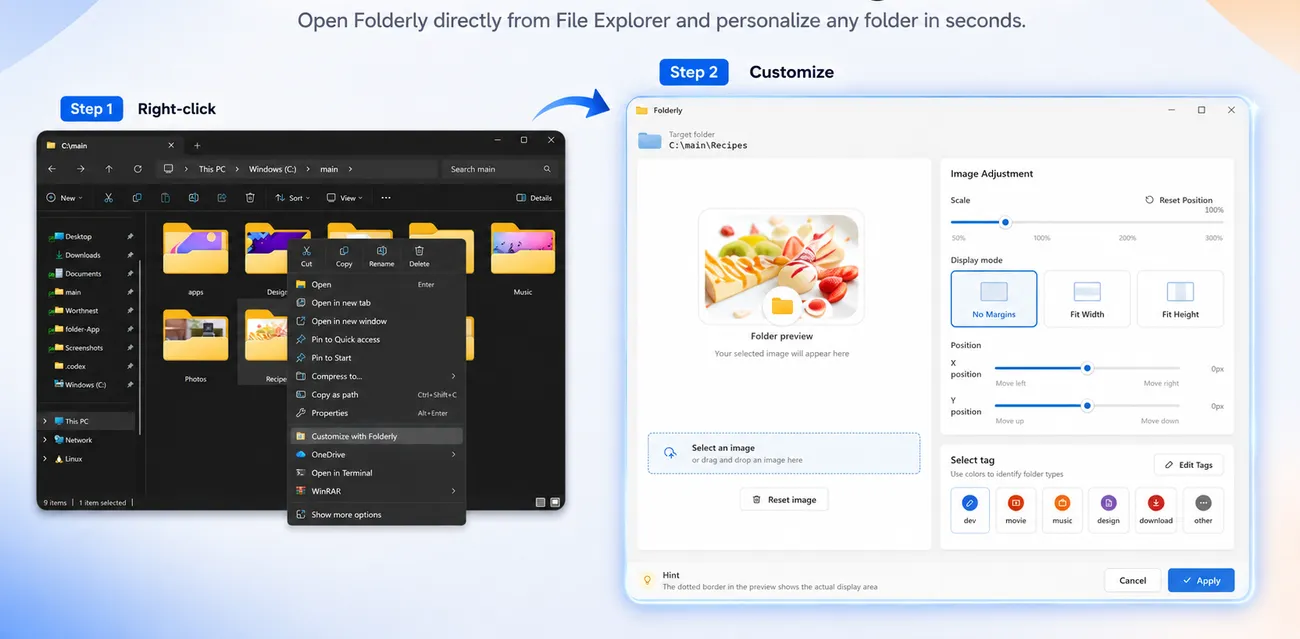
The built-in pain points simply go away. You can also sort folders with color tags and tag names, so everything stays findable at a glance. Changed your mind? You can revert anytime from history, so it's safe to experiment.

COMPAREBuilt-in vs Folderly
Here's how the two stack up. "Free above all" → built-in; "use photos easily and cleanly" → the app.
| Windows built-in (.ico) | Folderly | |
|---|---|---|
| Your own photos | △ needs .ico conversion | ◎ just drag |
| Position & size | × can't adjust | ◎ adjust in preview |
| Revert | △ manual | ◎ one click from history |
| Price | Free | $1.49 until Sep 2 (1-day trial) |
TROUBLESHOOTINGIf it won't change or reverts
"I set it but nothing shows up." "It quietly went back to yellow." Here are the quick fixes.
- The icon reverts: the built-in
.icomethod breaks if you move or delete the file. Keep it in place, or use a method that manages the file internally, like Folderly. - The change doesn't show / is slow: Windows caches icons. Reopen the folder or Explorer window to refresh (Folderly refreshes automatically after applying).
- You can't pick a photo: the built-in tool only accepts
.ico. To use a photo as-is, use Folderly.
desktop.ini. Folderly records the original state, so you can always restore the folder if you change your mind.For a full symptom-by-symptom guide, see Folder icon won't change or keeps reverting.
WRAP-UPPick what fits, and make folders easy to scan
Windows can change folder icons, but using a photo means an .ico conversion and a bit of fuss. If you want to use your own images as-is, fine-tune the position, and revert later, a dedicated app is far more relaxing.
Try the free built-in method first, and if you find yourself wanting something easier, take a look at Folderly.
Make every folder instantly recognizable.
Just drag in an image. No .ico conversion, no fiddly setup.
See Folderly1-day free trial