 Folderly
START HEREWhat Folderly does
Folderly is a small Windows app for customizing folder icons without the usual manual .ico workflow.
- Use PNG, JPG, BMP, or WebP images as folder covers.
- Adjust scale, position, and display mode before applying.
- Add color tags and tag labels for work, photos, design, study, and more.
- Restore folders from history whenever you change your mind.

BASIC FLOWChange a folder icon to an image
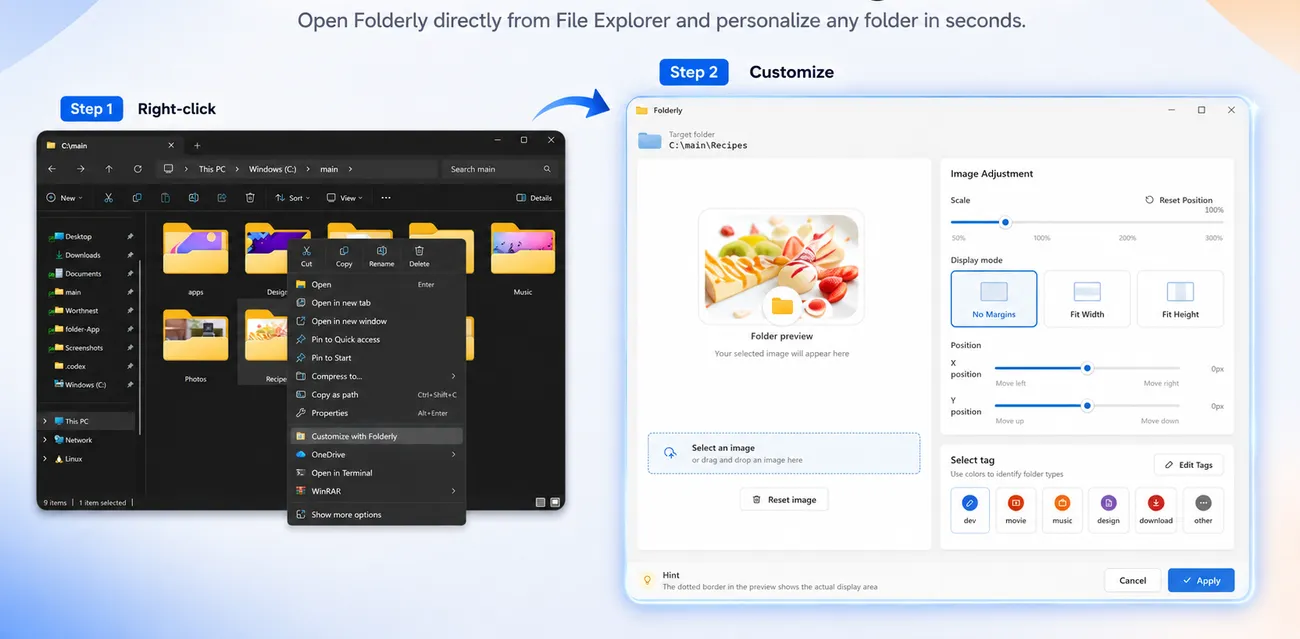
- Right-click the folder you want to customize and choose Customize with Folderly.
- Drop in an image. Photos, illustrations, screenshots, and logos all work.
- Use the preview to adjust the image scale, position, and display mode.
- Click Apply. Folderly saves the icon and refreshes File Explorer.
ORGANIZE FASTERUse color tags
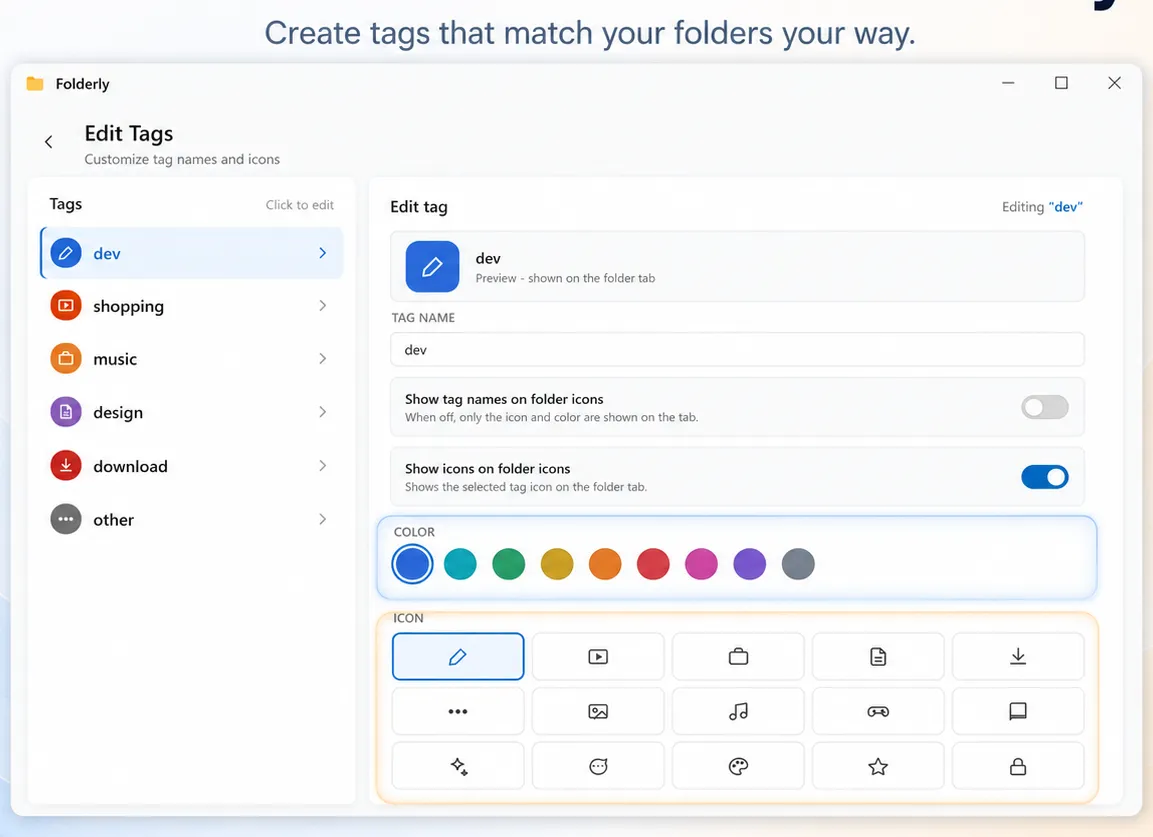
Images are useful, but color tags make folders even easier to scan. You can use tags on top of a photo cover, or use tags by themselves.
- Use blue for work, green for photos, red for urgent files, or your own system.
- Rename tags so they match the way you organize your folders.
- Choose tag icons to make folders readable at smaller sizes.
UNDO ANYTIMERestore a folder
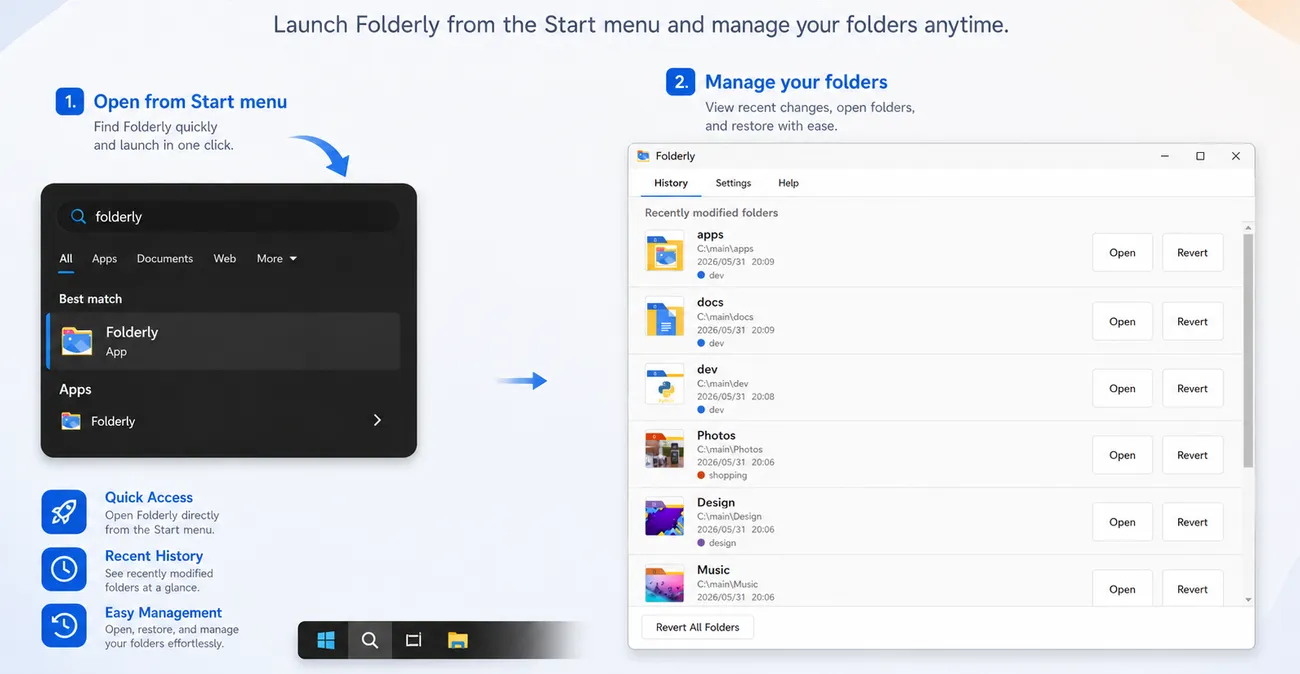
If you want the original folder icon back, open Folderly from the Start menu, select the folder in History, and restore it. You can restore one folder or multiple folders.
BEFORE YOU BUYTrial, privacy, and support
Can I try Folderly for free?
Yes. Folderly includes a 1-day free trial from Microsoft Store. Until Sep 2, the sale price is $1.49 as a one-time purchase.
Are my images uploaded?
No. Folderly processes selected images locally on your PC. It does not upload your chosen images to a server.
What about network folders?
Folderly works best with local folders. Network drives, NAS, and shared folders have limited support because Windows or the file server may ignore folder icon customizations.
Where can I get help?
If you have a question, a bug report, or a folder where the icon does not change, please use the Folderly support form.
Make folders easy to spot.
Use photos and color tags without .ico conversion.
Get it on Microsoft StoreIncludes a 1-day free trial